
Track stock and suppliers
Keep a stock list, record what you buy, and let jobs draw stock down automatically so you know what's in the van.
Inventory in Boetbook is intentionally simple: what you have, what you paid for it, and what’s running low. Every plan includes the basic stock list. Suppliers, purchases, and movements are on Professional and above.
1. Open Inventory
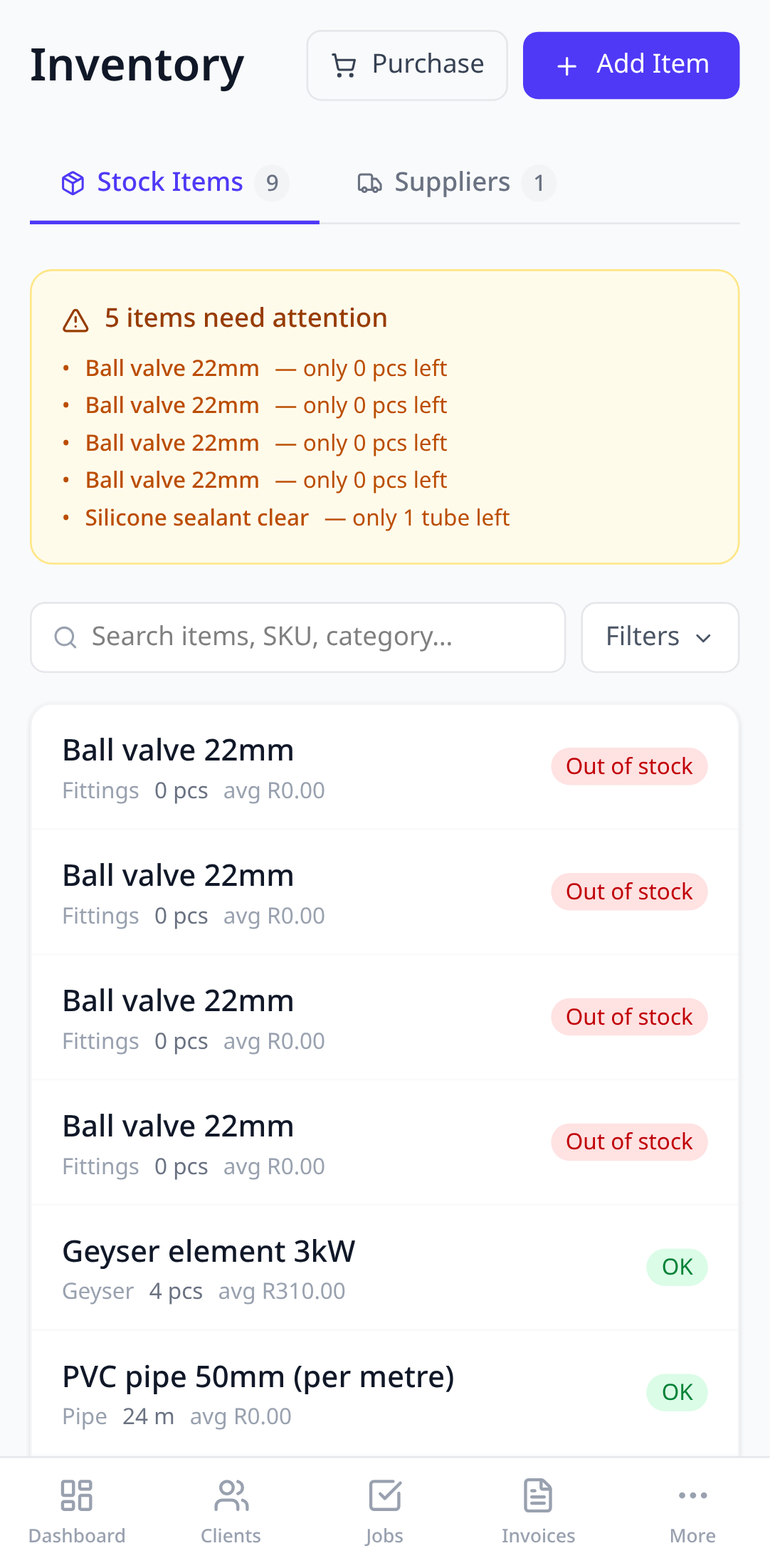
Tap More in the bottom bar, then Inventory. Items with a quantity below their low-stock threshold are flagged.
2. Add an item
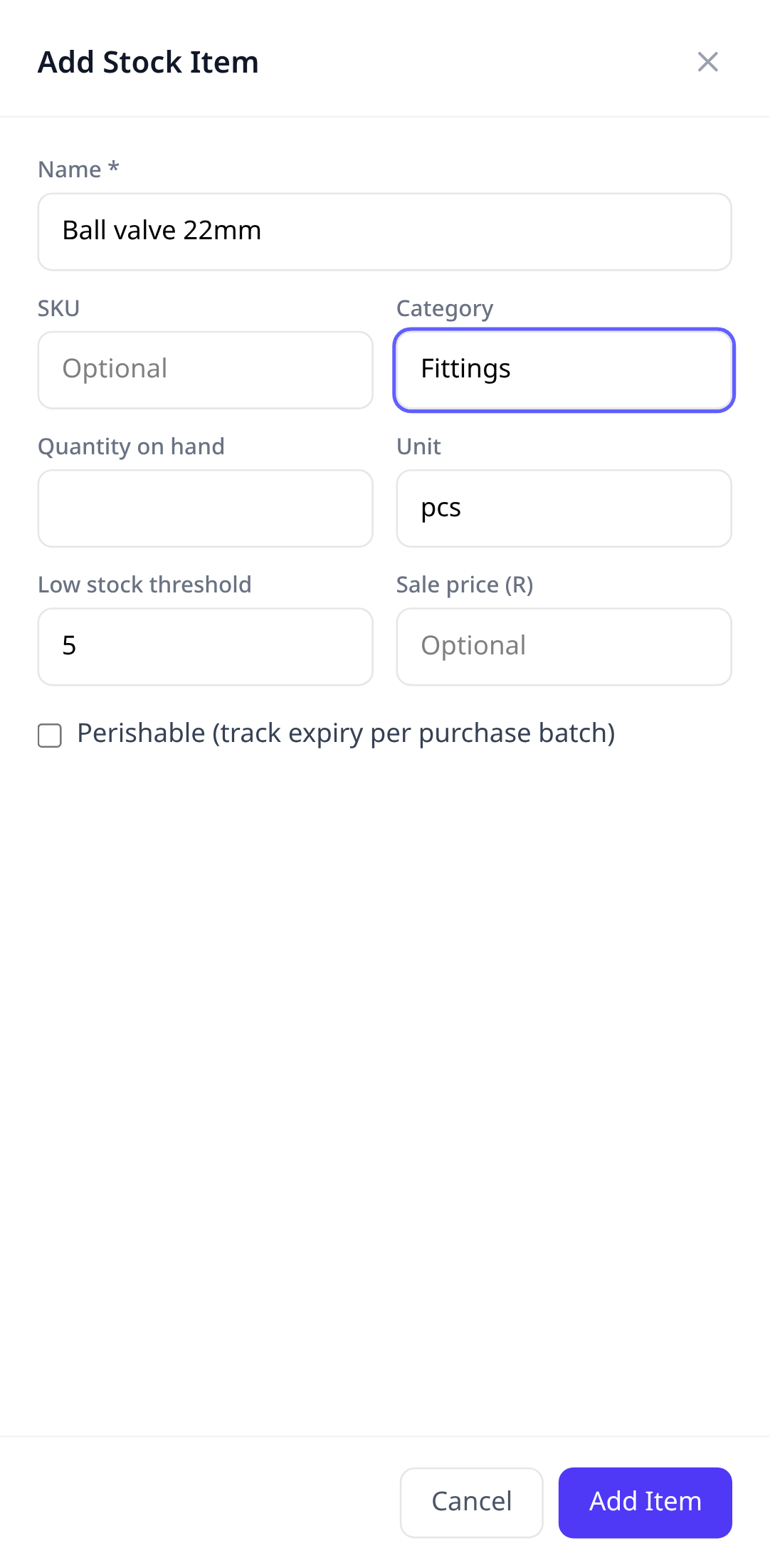
Tap Add Item. Give it a name, a unit (pieces, metres, litres), the quantity you have now, and the level at which you want a warning. A sale price is optional but lets you drop the item straight onto an invoice.
If you already keep your stock in a spreadsheet, tap Import CSV next to Add Item instead. Match the name, SKU, quantity, low-stock level, unit and price columns, review the preview, and import. Each item starts with an opening stock count, the same as when you add it by hand.
3. Record a purchase
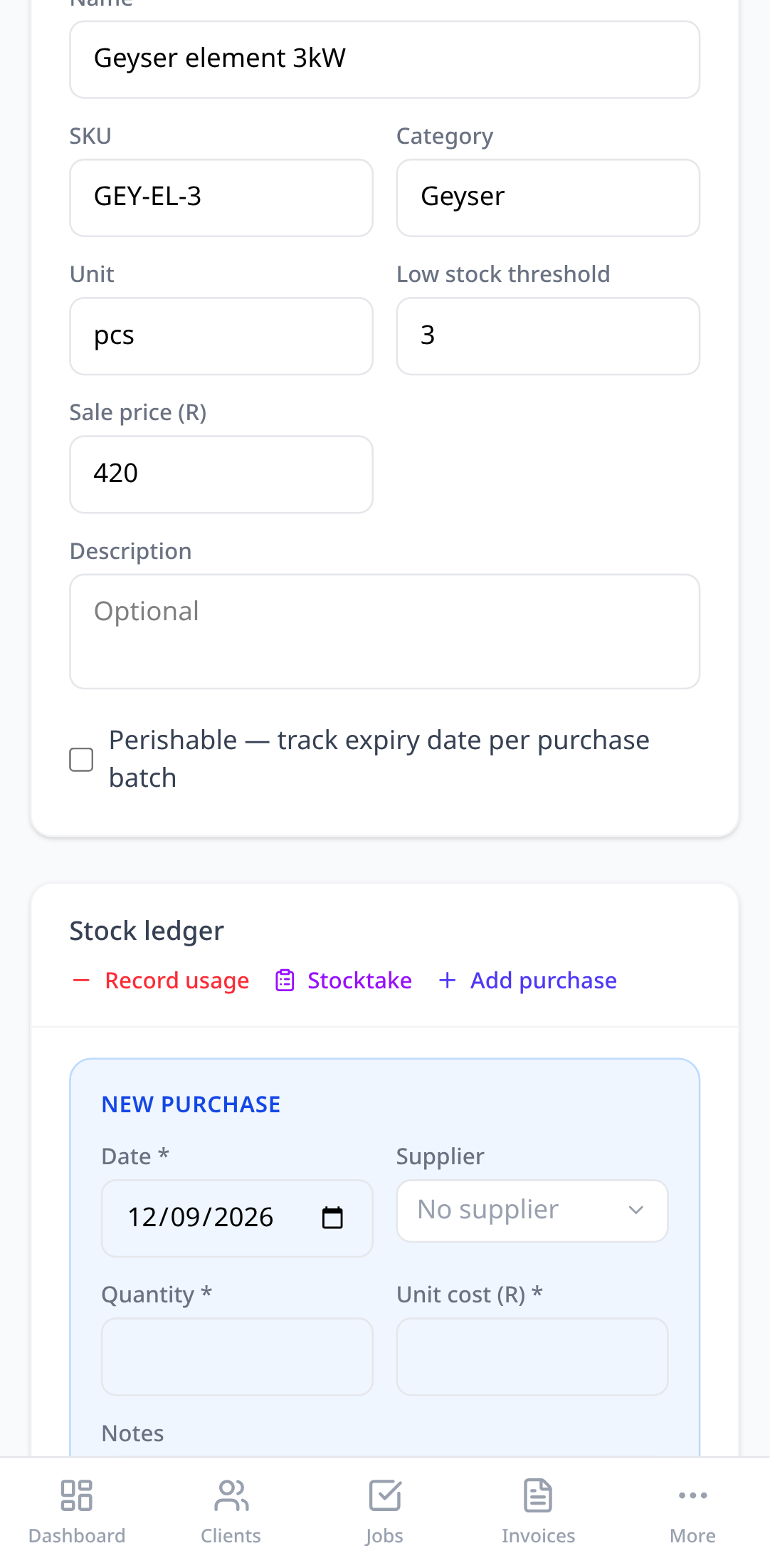
Open an item and tap Add purchase. Choose the supplier, the quantity, and what you paid. The stock count goes up and the purchase shows in the item’s history.
4. Let jobs draw stock down
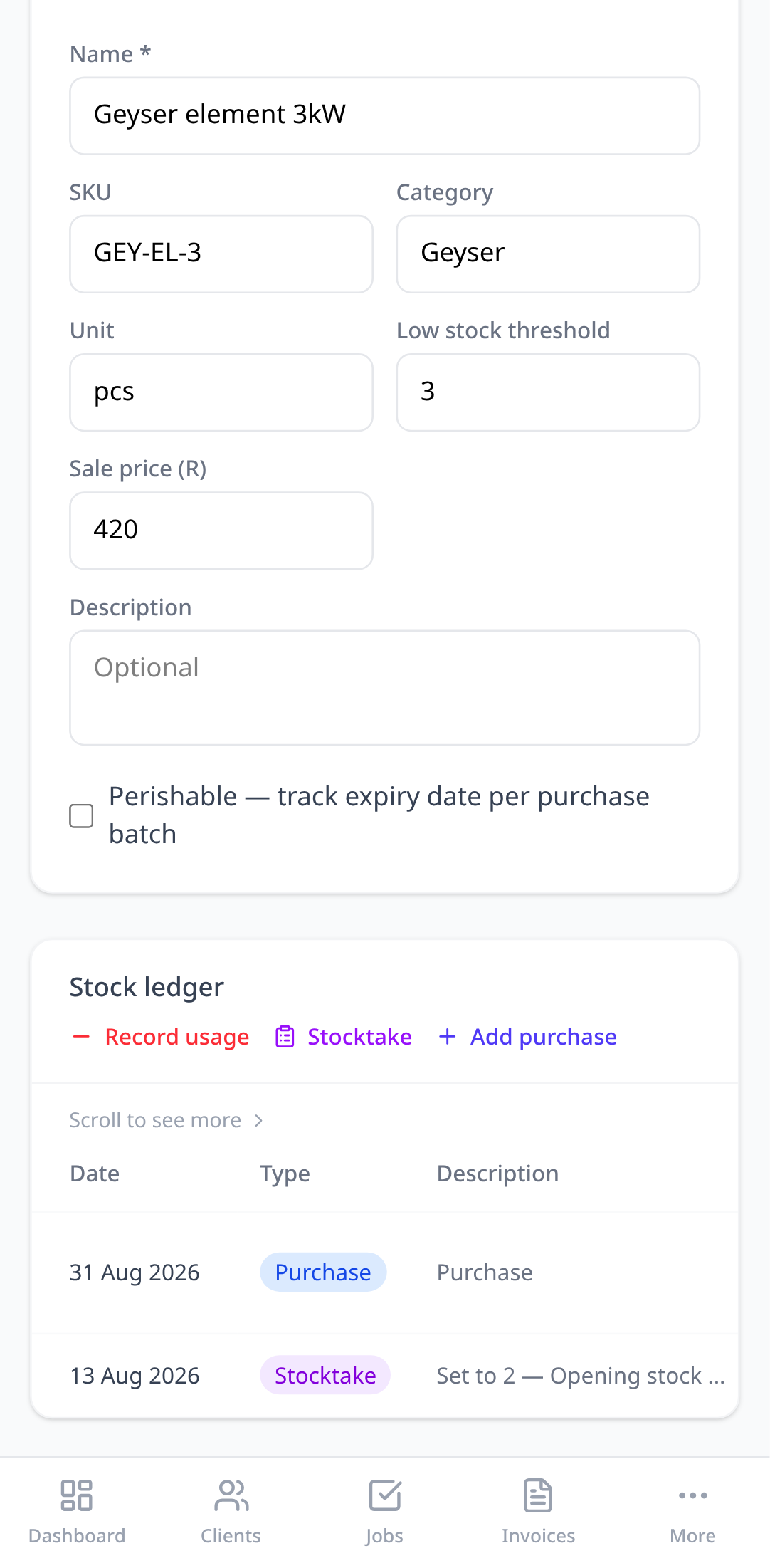
Link a line item on an invoice to a stock item, or add stock requirements to a service. When the job is marked done, Boetbook deducts the quantities and records a movement, so the count on the list is what’s actually left.
Suppliers
Suppliers are just names and contact details, kept so that a purchase can say who it came from. Add them from the item’s purchase form with + New supplier, or from the Suppliers tab.
Try it in your own account.
Free to start, no card. Set-up takes minutes, not weeks.