
From quote to invoice to paid
Send a quote, turn it into an invoice, share the PDF from your phone, and record the payment when it lands.
Quotes and invoices are the same document in Boetbook with a different label, so you learn one screen and use it for both. Quotes are unlimited on every plan, including Free.
1. Open Invoices
Tap Invoices in the bottom bar. The list shows quotes, invoices and credit notes together, with a status on each: draft, sent, paid, unpaid, or credited.
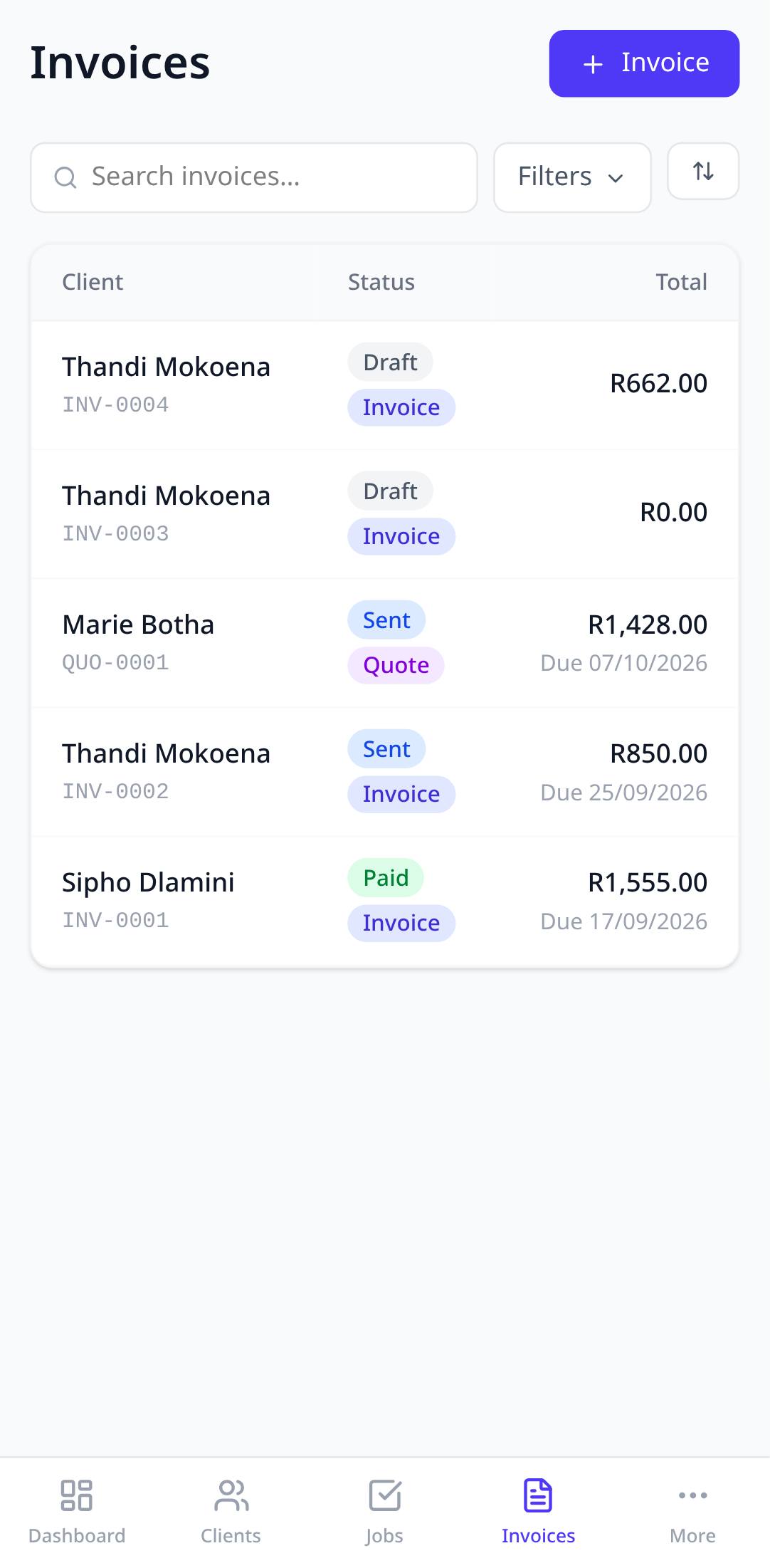
2. Start a new document
Tap the add button and choose Quote or Invoice. Pick the client. If you’ve set up services, choosing one fills in the usual line items.
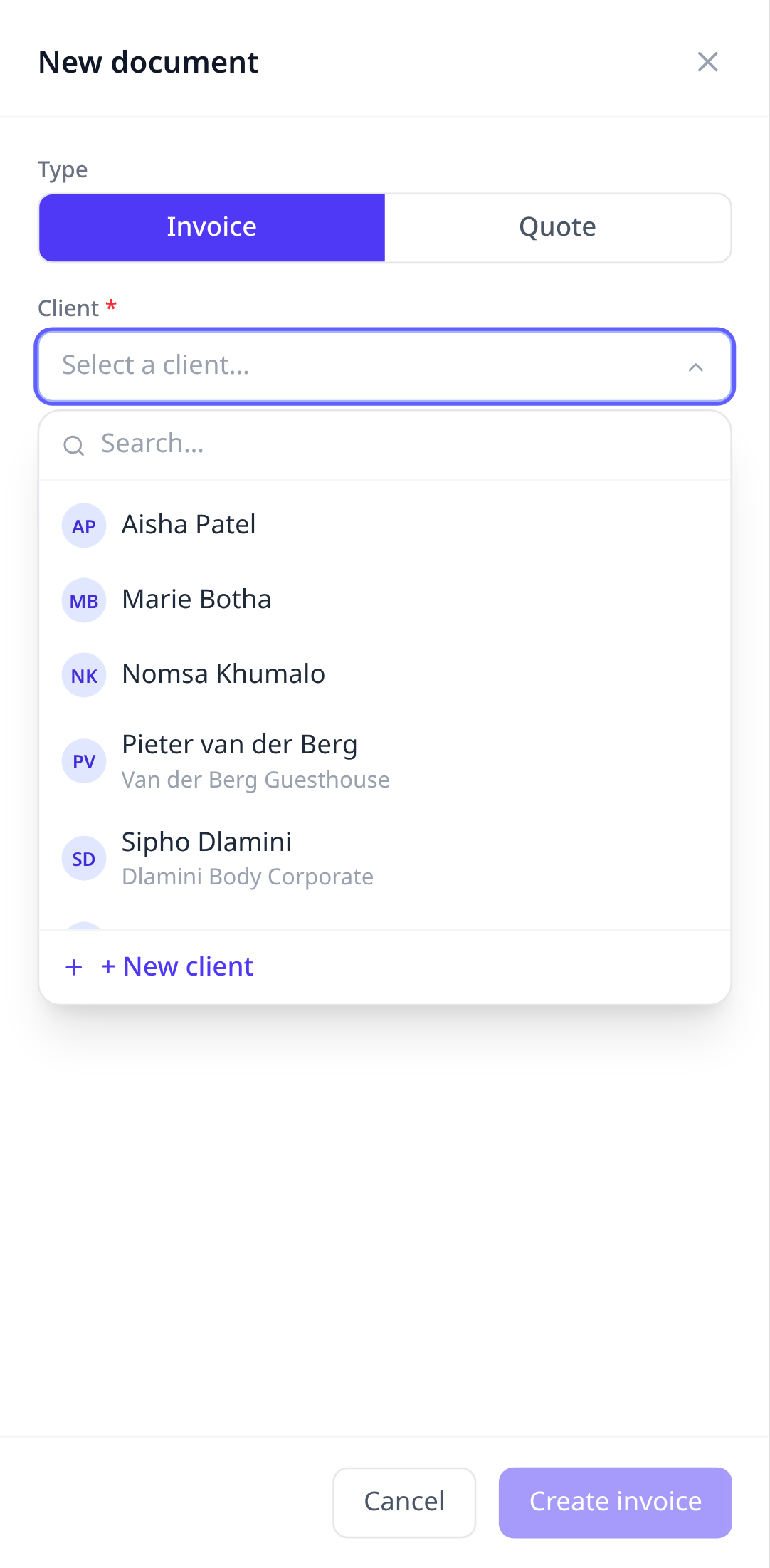
3. Add line items
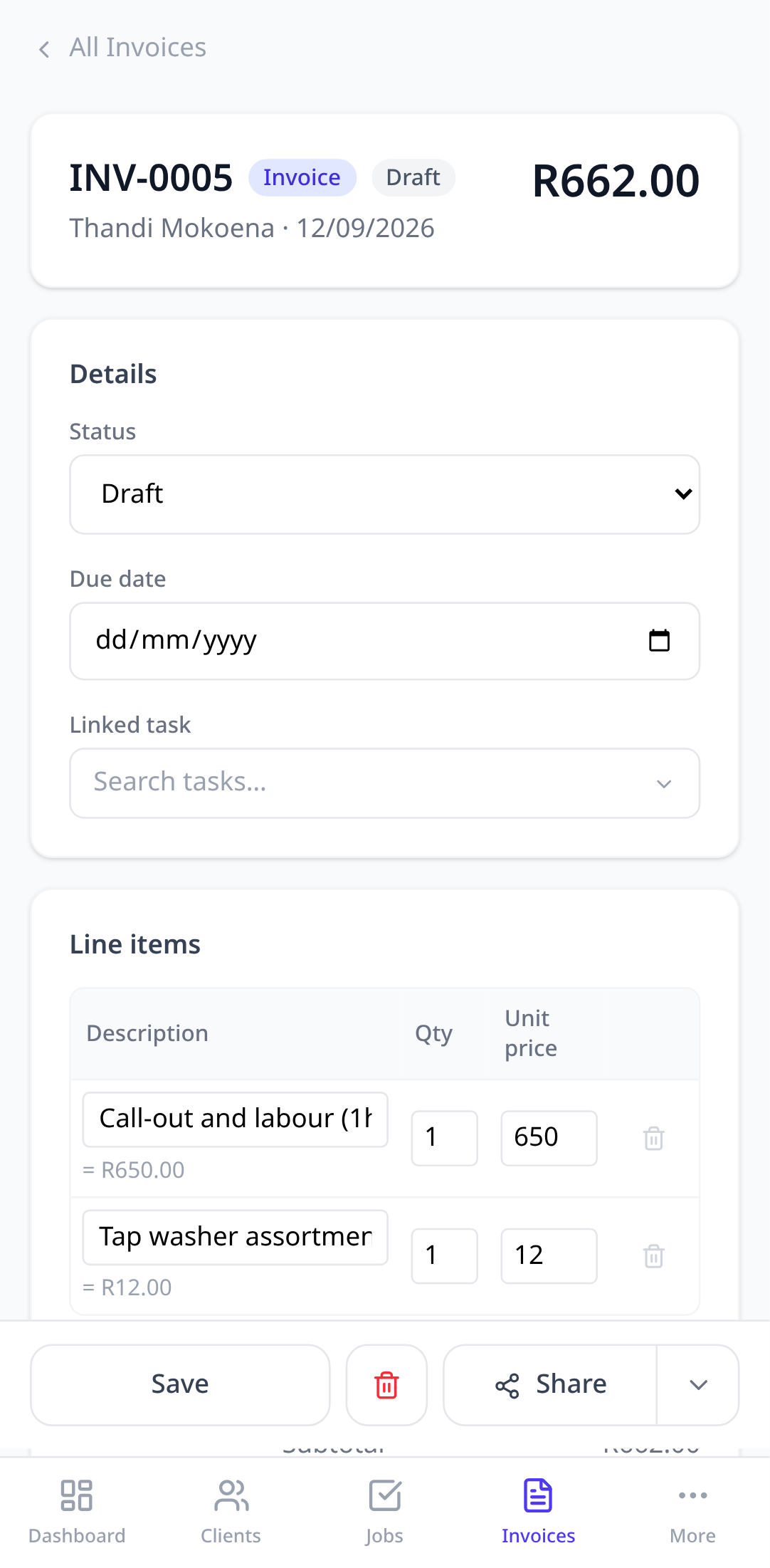
Each line has a description, a quantity, and a unit price. Link a line to a stock item and the stock is deducted when the job it belongs to is marked done. The total updates as you type.
If you’re VAT-registered, the VAT rate and the VAT amount appear under the lines. Tick Prices include VAT when the prices you typed already include VAT: the total stays what you typed and the VAT is worked out from it. If you’re not registered, there’s no VAT on the document at all.
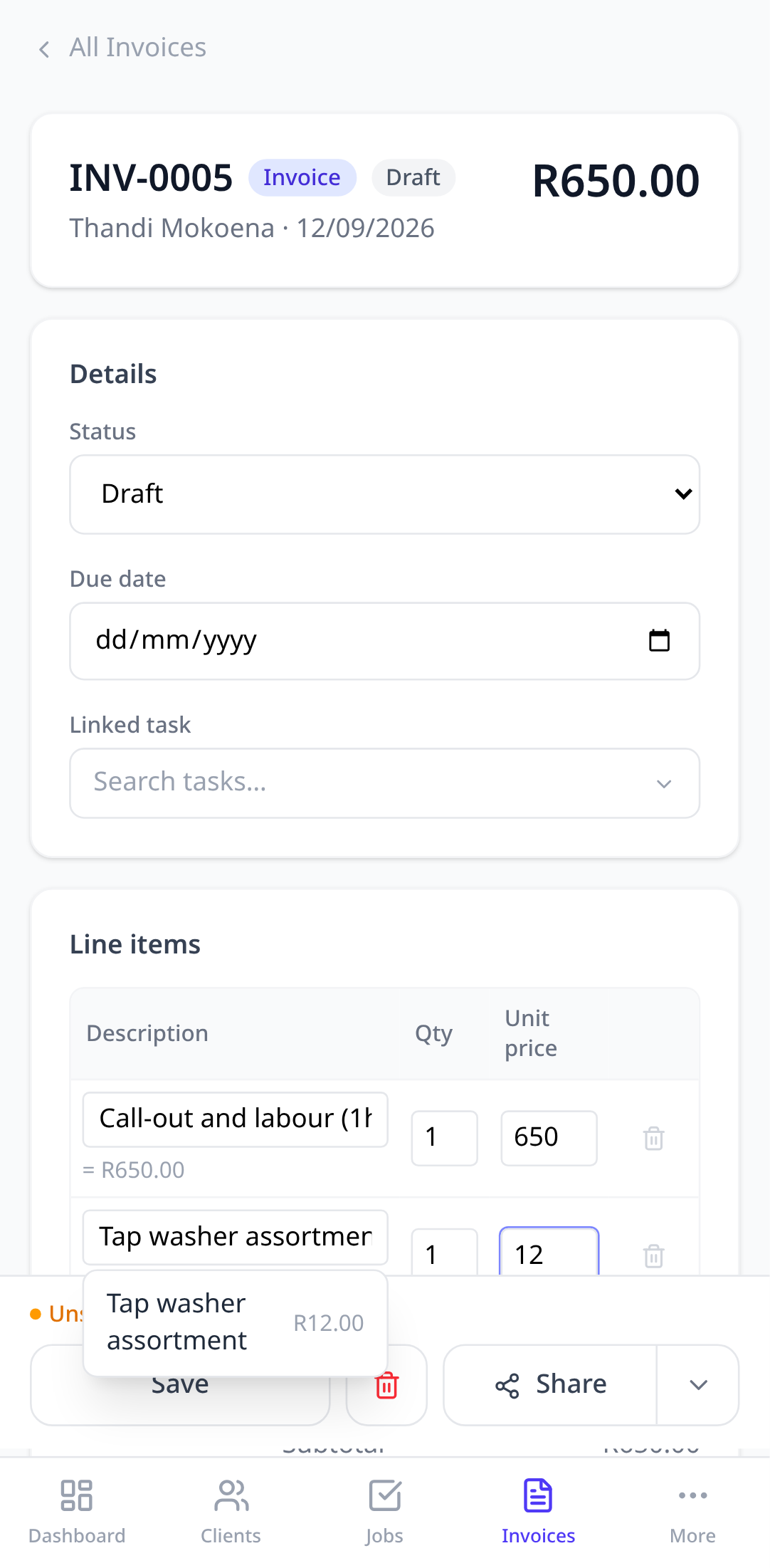
4. Share it
Tap Share on the bar at the bottom of the document. On a phone this opens the normal share sheet with a PDF attached, so you can send it by WhatsApp, email, or anything else installed. On a desktop it downloads the PDF.
You can also tap WhatsApp (on a phone it’s under the arrow next to Share). It opens WhatsApp with a message to the client: the invoice number, the amount due, the due date and how to pay.
Get paid faster: how to pay
Add your bank name, account holder, account number and branch code under Settings > Get paid, your PayShap number or ShapID if your bank has set one up, and optionally a “Pay online” link from Yoco, PayFast, SnapScan or Paystack. They then appear in a How to pay block on the invoice, the PDF, the print view and the WhatsApp and email messages, together with “Use reference: INV-0001” so you can match the deposit. Once your VAT number is set in Settings, the document is titled Tax Invoice. Quotes stay quotes. An invoice keeps the VAT treatment it was sent with, so registering for VAT later doesn’t change old invoices.
5. Turn the quote into an invoice
When the client says yes, open the quote and tap Convert to invoice. It gets the next invoice number and keeps every line item. The quote stays in your history.
6. Record the payment
When the money arrives, open the invoice and tap Mark paid, or + Payment for a part payment. Every payment is listed under Payments. The invoice status moves to paid on its own, and the dashboard’s cash-flow cards update.
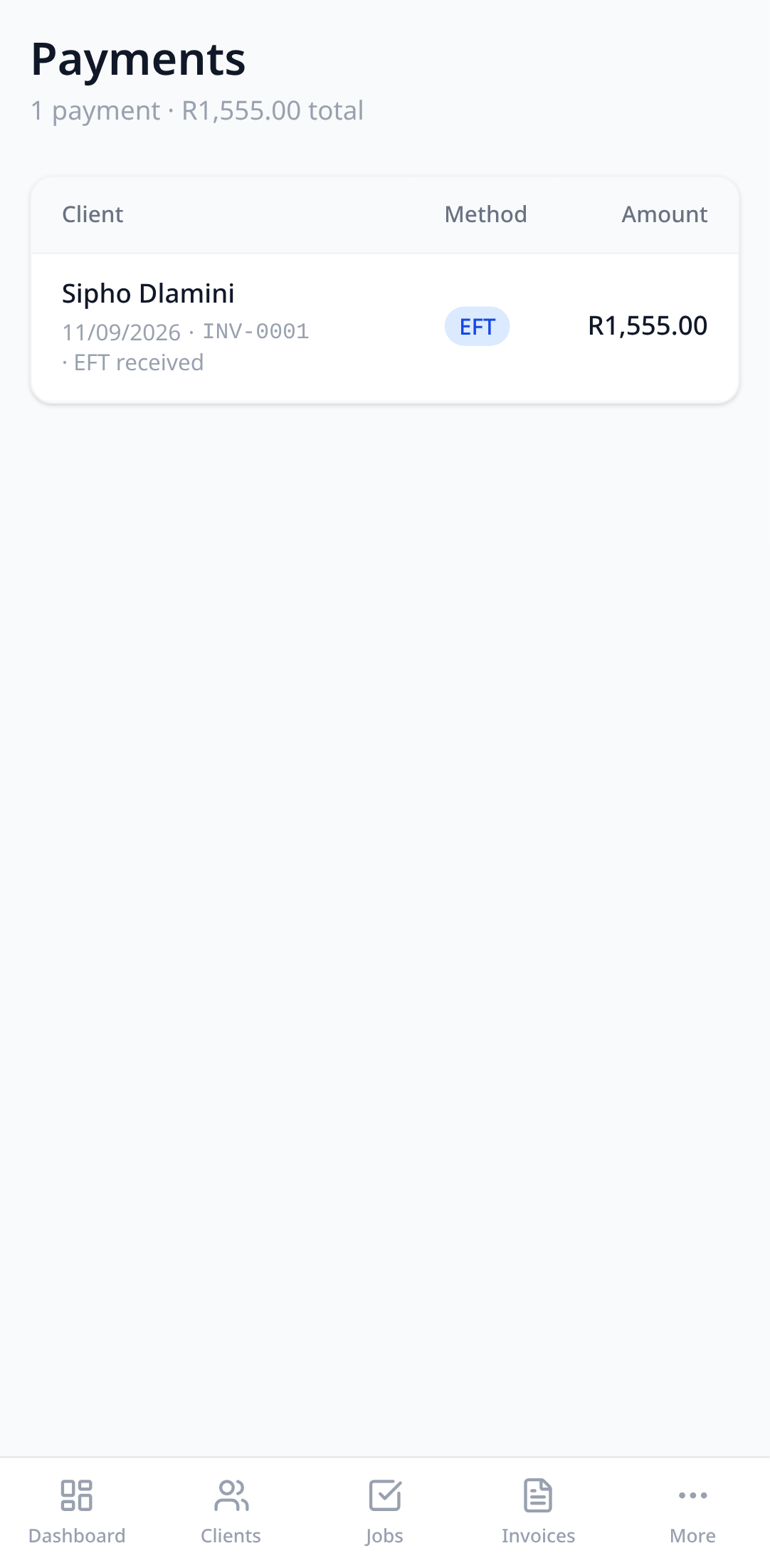
Have a bank statement or spreadsheet of past payments? Tap Import CSV at the top of Payments. Boetbook matches each row to a client by name or email and to an invoice by its number, so the payment lands on the right invoice. Rows it can’t match are still imported, unlinked, with the name or number kept in the note.
7. Fix a sent invoice with a credit note
If you’re VAT-registered, a tax invoice can’t change once it’s sent: SARS allows one tax invoice per sale, so its lines, amounts and VAT are locked and it can’t be deleted. When something changes afterwards (parts come back, you agree a lower price, or the invoice was a mistake), open the invoice and tap Issue credit note. Tick the lines you’re crediting, lower the quantity or price for a part credit, and give a short reason. The credit note gets its own number (CN-0001 and up; change the prefix in Settings > Invoicing) and its own PDF showing the invoice it reduces, the reason, and the VAT.
The invoice then shows what’s left to pay. If the client had already paid, it shows the credit owing back to them. Pay the refund from your bank as usual, then tap Record refund so the invoice and your payments match. If you’re not VAT-registered you can still edit sent invoices, and credit notes are optional.
8. Send the month to your accountant
On Invoices, tap the download button (Export on a desktop) and pick the format your bookkeeper uses: Sage Accounting (South Africa), Xero, or a plain spreadsheet. It starts on last month; change the dates if you need to. Download the invoices, the customers they’re for, and the payments received, one file each. Quotes and drafts are left out. Credit notes are included as negative amounts, with the invoice they credit. Xero imports the invoice file directly and turns the negative ones into credit notes. Sage’s South African edition imports the customers file but not invoices, so the invoice file is a list to capture from.
Not ready for an app yet?
There’s a free quote and invoice template in PDF and spreadsheet form. It covers the SARS fields and does the VAT maths, and it’s the same structure Boetbook uses.
Invoice numbering and your details
Invoice numbers, the prefix, and the company details on the PDF all come from Settings. Set your company name, address, and a logo (PNG or JPEG) once and every document uses them. Under Invoice design you can pick one of three layouts, Classic, Modern or Trade docket (a compact job card with a sign-off box), and a colour. Tap Preview PDF to check it.
What clients see grows with your plan. Every plan puts your logo, business details and bank details on the Classic design. Professional adds the Modern and Trade docket designs, your colour, a footer for your terms, and your own opening for invoice messages and the thank-you message. Max adds a signature, lets quotes be called a Quotation, Estimate or Proposal, and gives quotes their own design. If you move to a smaller plan, your settings are kept and come back when you upgrade.
For a tax invoice of R5,000 or more, SARS needs the client’s address, and their VAT number if they’re registered. Add the address to the client’s locations and the VAT number with Edit on the client. Boetbook reminds you on the invoice if something is missing.
Try it in your own account.
Free to start, no card. Set-up takes minutes, not weeks.